Wrapping Up
Table of Contents
This section covers the final steps and review before completing your finding aid.
Final Review
Before finalizing the the finding aid, review the following:
1. Is the collection description DACS compliant? Not all required DACS elements are required in ArchivesSpace.
2. Are all locally-required fields present? ArchivesSpace does not necessarily enforce fields required by local standards.
3. Are containers properly created and linked to their corresponding components? Please refer to Container Instances for guidelines on creating and linking containers.
4. Are access terms properly linked to the collection, and were new terms properly created? Please refer to the Archival Processing Manual for guidelines on creating new access terms.
ArchivesSpace Mappings to MARC/EAD/DACS
The mappings between ArchivesSpace to MARC, EAD, and DACS can be found here 🔒. The chart below lists the available XML tags in ASpace, as well as if and when they should be used.
Each XML tag links to its definition in the EAD 2002 tag library, and some descriptive text links to the Archival Processing Manual.
Inline XML Markup
| Tag | Definition |
|---|---|
| language | Use for Language of Material notes. Wrap language names in this tag (e.g. Materials in <language>English</language> and <language>French</language>). |
| blockquote | Do Not Use. |
| date | Use for Processing Information notes. Wrap the year that the collection was originally processed in with this tag (e.g. Processed by <name>Anne Archivist</name> in <date>2016</date>). |
| function | Do Not Use. |
| occupation | Do Not Use. Provide collection-level occupations as linked subjects. |
| subject | Do Not Use. Provide collection-level linked subjects. |
| emph | Use to provide stylistic formatting. Wrap the text that you wish to italicize in <emph> tags (e.g. The <emph>Titanic</emph> sank in 1912). Do not use <emph> for titles; see <title>. |
| corpname | Do not use. Provide collection-level names as linked agents |
| persname | Do not use. Provide collection-level names as linked agents |
| famname | Do not use. Provide collection-level names as linked agents |
| name | Use when providing your name in the Processing Information fields. |
| geogname | Do not use; provide collection-level places as linked geographic subjects. |
| genreform | Do not use. Provide collection-level genres as linked subjects |
| title | Use to provide titles within notes. Wrap the text of the title in <title> tags (e.g. Shelley’s <title>Frankenstein</title>”). The |
| ref | Do Not Use. |
| extref | Do Not Use. |
Exports
ArchivesSpace allows for the export of MARCXML, EAD, PDF, and a CSV of a resource’s containers.
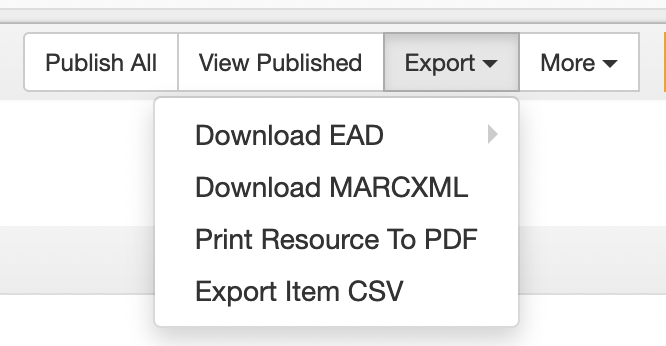
Finding aids can be exported as PDF files using the Export button in the Resources page. Selecting Print Resource to PDF will take you to the New Background Job screen.
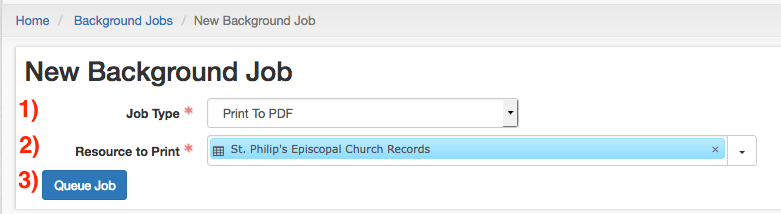
Select Print to PDF from Job Type (field 1).Select the collection to generate a finding aid for from Resource to Print (field 2). Collections can be searched by typing into the field, or selected via the Browse option under the drop-down menu on the right.
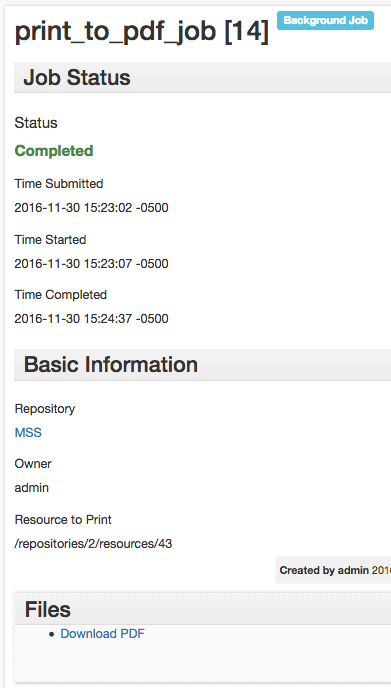
Clicking Queue Job (button 3) will begin the process of generating a PDF to download. Once the job is queued, ArchivesSpace will open a new page, which monitors the progress of the PDF generation. Once the page’s Status updates to Completed, refresh the page. A Download File link will appear on the page under “Files.” Note that PDF finding aids are for internal use only, and will not necessarily reflect how finding aids will appear in the Archives Portal.
If you receive an error when generating a PDF, export the finding aid’s EAD XML and validate it in an XML editor such as Oxygen or XML Validation. Most errors in PDF generation are caused by mismatched or malformed XML tags in component titles, which will be detected by an XML validator.
See our internal troubleshooting guide 🔒 for more tips on troubleshooting your export. If you cannot figure out the issue, file a ServiceNow ticket 🔒.
MARC
Collection-level description can be exported as MARC XML using the Export button in the Resources page. Selecting Download MARCXML from the Export menu will generate a MARCXML record and download it to your hard drive. Before importing the MARC record into OCLC, open the record in MARCEdit, complete the necessary revisions, and save it as an MRC file. Otherwise, OCLC will reject the record.
The Archival Processing Manual has more information on working with MARCXML and MarcEdit.
Once your MARC record is in Sierra, you will need to enter the collection’s 8-digit bnumber (i.e. without the check digit) into the Identifier field of the Resource page.
Bnumbers display as 9 digits, but the final digit is a checksum and should not be included in the ASpace identifier field. The Sierra manual has detailed information explaining how bumbers are formed. If you need to locate a collection in sierra using the bnumber, search by Record no and use the letter a in place of the 9th digit.
EAD
Collections can be exported as EAD XML via the Export button in the Resource page. Selecting Download EAD from the Export menu will generate an EAD XML record and download it to your hard drive. This EAD will be ready for import into the Archives Portal, although you may want to review it beforehand.
SPEC Item CSV
Item records for import into SPEC can be generated by clicking Export Item CSV from the Export menu. This will generate a CSV spreadsheet of all of the item records in a collection, which can then be loaded into SPEC. More information on this process can be found in the Archival Processing Manual.
Printing Box Labels
Box labels can be printed by selecting Print Labels from the Bulk Operations menu. This will begin the process for printing labels for the selected containers.
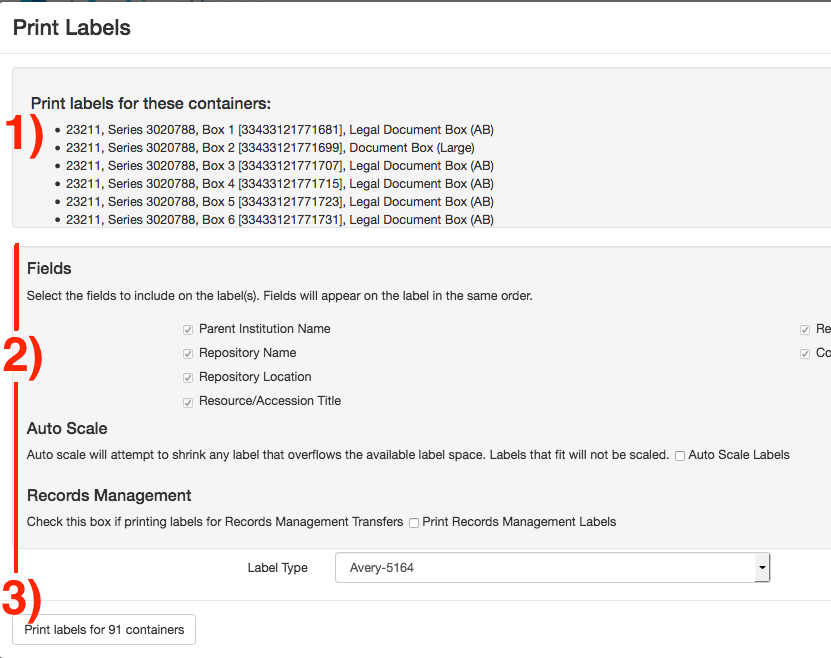
Selecting Print Labels will open the Print Labels screen, which provides the opportunity to review the selected containers (field 1). Leave all options (field 2) as default. Selecting Print Labels for Containers will generate a page of labels for the selected containers.After the label page has been generated, you can open the page in your web browser and print Avery 5164-formatted box labels.