Bulk Container Management
In addition to working with containers in the Container screen, ArchivesSpace allows for containers to be managed in bulk. This is done in the Manage Top Containers screen, which can be accessed from the gear icon in the toolbar.
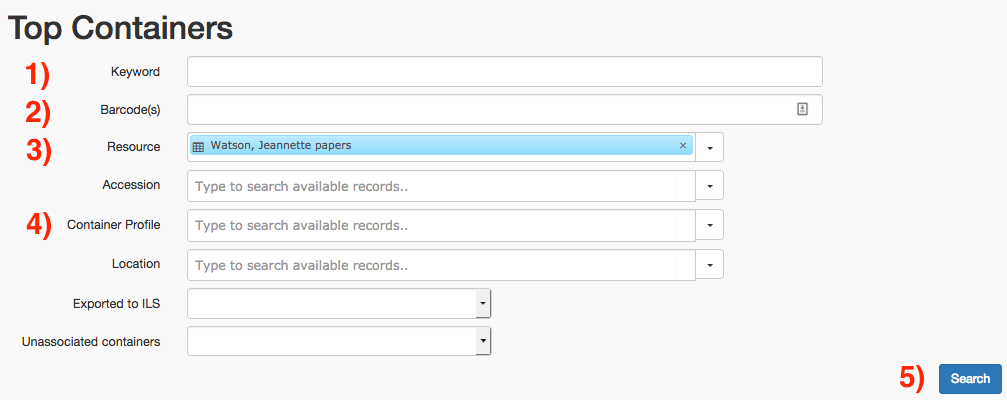
Opening this screen will bring up a search menu. Containers can be searched by Keyword (field 1), Barcode (field 2), Resource (field 3), or Profile (field 4.) Once your search parameters are set, select Search (button 5) to search all containers within your repository.
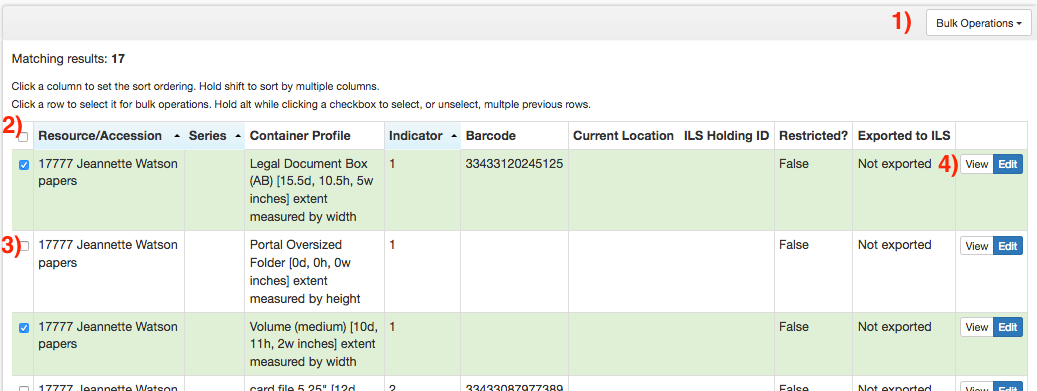
Any containers that match your search query will appear on this screen. Containers can be viewed and managed individually by selecting the View or Edit button (buttons 4). Containers can also be selected using the checkboxes to the far left (box 3), or all at once using the top-left checkbox (box 2). Once the containers that you want to edit are selected, open the Bulk Operations menu (menu 1) to either enter barcodes or assign container profiles.
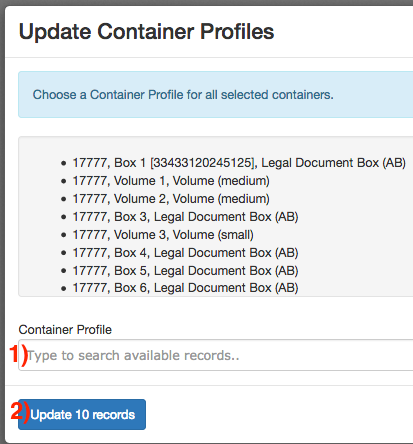
If you wish to assign container profiles in bulk, select Update Container Profiles from the Bulk Operations menu. The selected containers will appear in a list, along with a field to input the profile that you want to assign (field 1). Once a profile is selected, select the Update Records button (button 2) to assign the container profile, or Cancel to leave the screen without changing any data.
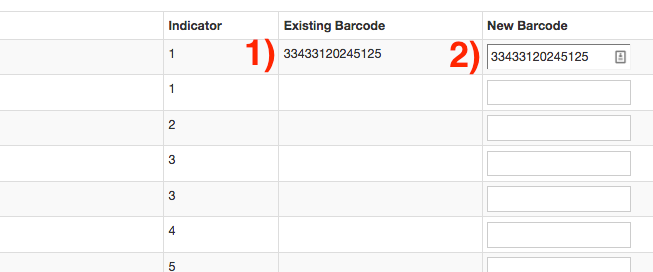
If you wish to assign barcodes in bulk, select Rapid Barcode Entry from the Bulk Operations menu. The selected containers will appear in a list, along with a field to input new barcodes. The existing barcode (if any) will be under the Existing Barcode column (field 1). New barcodes can be input with a scanner or manually in New Barcode (field 2). If a container has an existing barcode assigned to it, this barcode will be repeated in the New Barcode field. Once finished, select Update Records to save the new barcodes.
Barcodes must be either exactly 14 characters, or left empty
If any barcodes are malformed, the entire set of records will not be saved. ArchivesSpace will display an error message and provide the opportunity to adjust the barcode.
If you plan to enter and save barcodes multiple times during one session, you will need to refresh the Manage Top Containers screen after you save each time. Otherwise, barcodes may not be saved.
Note that removing an existing barcode from the New Barcode field will delete it from the container.
If you wish to leave a barcode unchanged, do not edit the value in the New Barcode field.