Resource Records
Table of Contents
This section provides an overview of Resource Records in ArchivesSpace, details all the fields of the record, and explains how to fill them out.
- What is an ASpace Resource Record?
- Basic Information
- Notes (Collection Front Matter)
- Adding Identifiers
What is an ASpace Resource Record?
In ArchicesSpace a resource record is ArchiveSpace’s name for an archival collection record. Resource records for new acquisitions are created by Archival Processing management after the aquisition is accessioned or a backlog collection is identified for processing. Resource records for legacy collections that are published only on the Archives Portal are created by importing the EAD XML file into ArchivesSpace.
If you are working on revisions or additions to a legacy collection that is not in ArchivesSpace, you can request an import through the Archival Processing Description Remediation Form 🔒
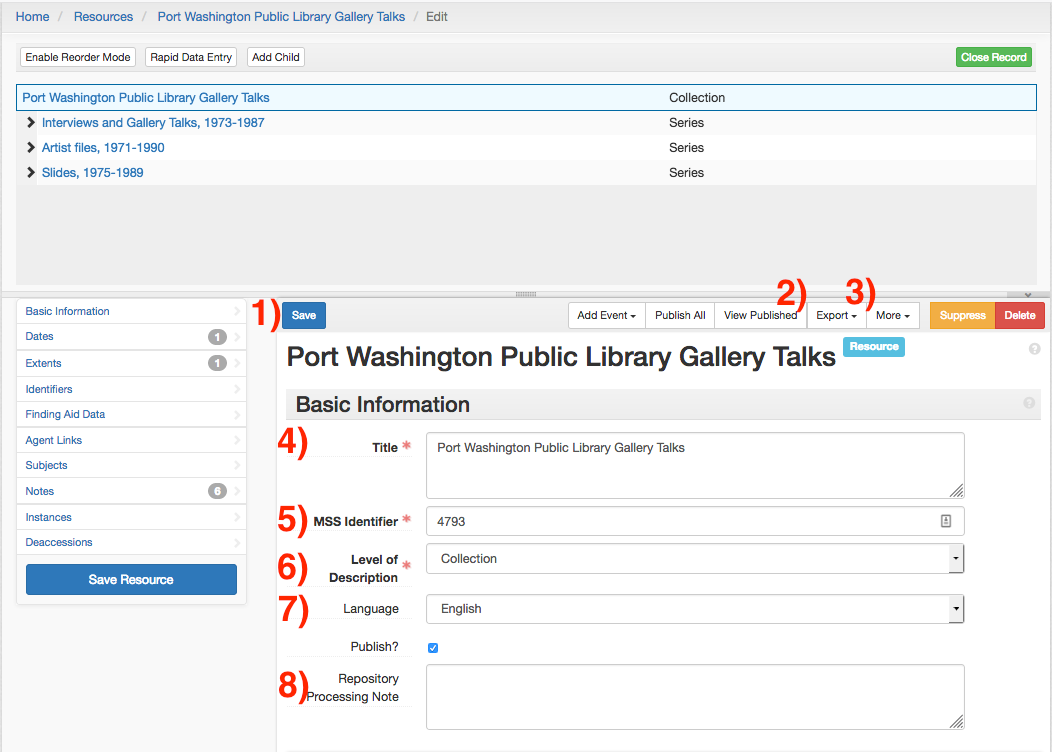
Resource records are created by selecting Resource under the Create menu at the top of the screen. A Collection’s resource record is almost always created immediately after a new acquisition is accessioned or imported from the Archives Portal when legacy description needs to be revised.
A resource can be saved by pressing the Save button (button 1). Note that if every field marked by a red asterisk is not filled out, the collection cannot be saved.
Each resource can be exported as EAD, PDF, or MARCXML by selecting Export (button 2). More information on exporting finding aids can be found under the Exports section.
The Extent Calculator and Date Calculator are available under the More menu (button 3). More information on these functions is available under Wrapping Up Resources.
Basic Information
Provide the collection’s title in the Title field (field 4). Titles should comply with DACS 2.3.
Locate the MSS ID from SPEC and enter it into the MSS Identifier (field 5). Do not create a collection without an identifier. Provide the MSS ID as a number, with no “MssCol” prefix.
Provide the level of description in the Level of Description field (field 6). For all Resources, this must be set to Collection, even though it will initially default to file.
Provide the language of the collection’s material in the Language field (field 7). If more than one language is present, select Multiple Languages, and describe the languages in a _Language of Materials note.
Notes (Collection Front Matter)
The Notes form supports the creation of free text description about a collection. For example, the Notes form is used to create a collection level scope and content notes and immediate source of acquisition note for acquisition information. Please refer to DACS and the EAD standards for more information on the appropriate type, content, and encoding of notes.
The requirements and standards for collection-level description are available in the Processing Manual in the sections on Front Matter and Finding Aid Notes.
Some access notes are automatically generated by the Archives Portal. See the section on this user guice Standard Access Notes for more information, and the Finding Aid Notes section of the Archival Processing Manual for more information.
Processing information notes should be formatted as:
Processed by <name>Anne Archivist</name> in <date>2016</date>.
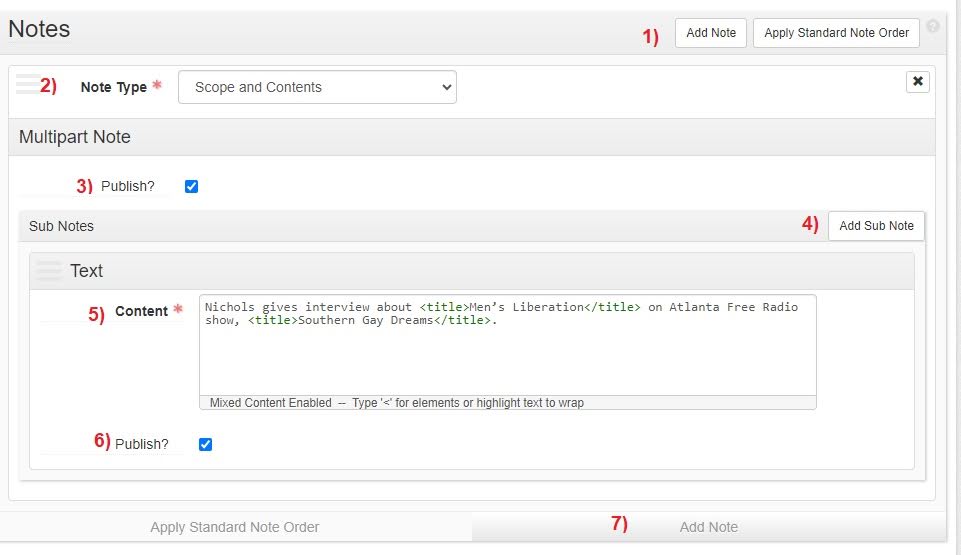
Additional note sub-forms can be added via the Add Note button (buttons 1, 7).
The note type is declared by selecting a type from the Note Type menu (field 2).The Add Sub Note button (button 4) will create additional sub-forms to enter additional paragraphs.
Enter the text of the note into the Content field (field 5).
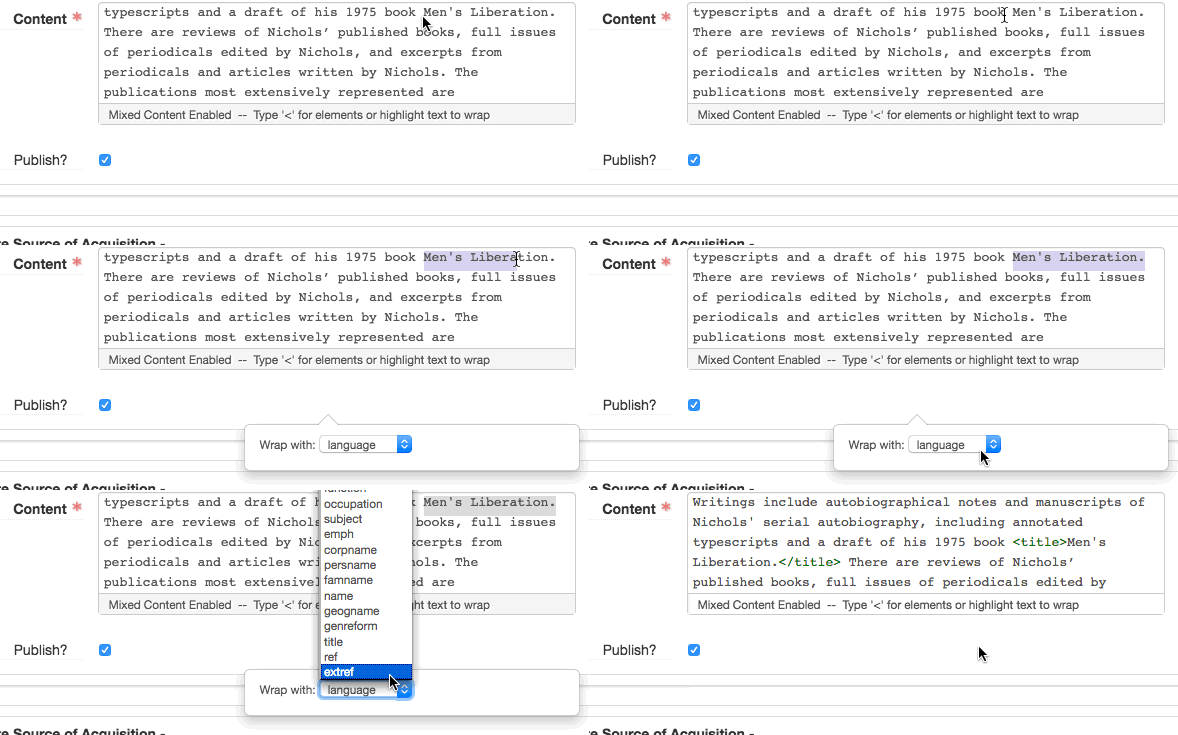
Use EAD XML tags (e.g. <persname>, <title>) in note text. Alternatively, by highlighting note text, a pop-up menu of options will appear. Selecting one will wrap the text in the corresponding tag.
For more information on available tags, please see the Inline XML Markup chart.
ArchivesSpace will not provide automatic punctuation on any notes. Any trailing punctuation will need to be provided in the forms. Automatic trailing punctuation is only provided for Subject Links and Agent Links in the MARCXML.
Adding Identifiers
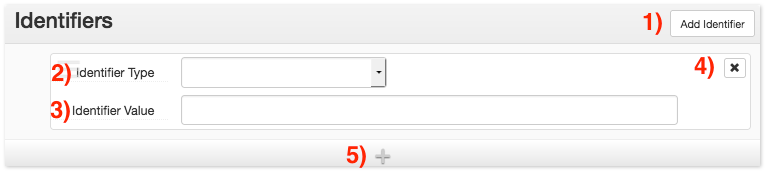
Provide any non-MSS Identifier using the Identifier form.
Additional identifiers can be added via the Add Identifier button (button 1) or the + bar (button 5).
Provide the type of identifier using the Identifier Type drop-down menu (field 2). Use the following options:
Call Number
The call number field is for providing a call number that uniquely identifies the collection. For example, a Dance classmark such as *MGZEB 16-241 would be provided as a Call Number. Do not provide Manuscripts-style call numbers (e.g. MssCol 1234) as Call Numbers. **Note that non-MSS collections will not export item records in MARC without a Call Number.
bnumber
The bnumber field is for providing an identifier from the catalog (e.g. b12345678). Prefix the number with a b, and use the eight-digit form of the number. Do not provide this identifier if the collection is not in the NYPL Catalog. bnumbers are generated when a collection is cataloged.