Archival Objects
In ArchivesSpace, an archival object represents anything below the collection level. Archival objects represent series, subseries, files, and items. In EAD, an archival object represents a component. Container lists are formed by creating archival objects within a Resource.
Table of Contents
Managing Archival Objects
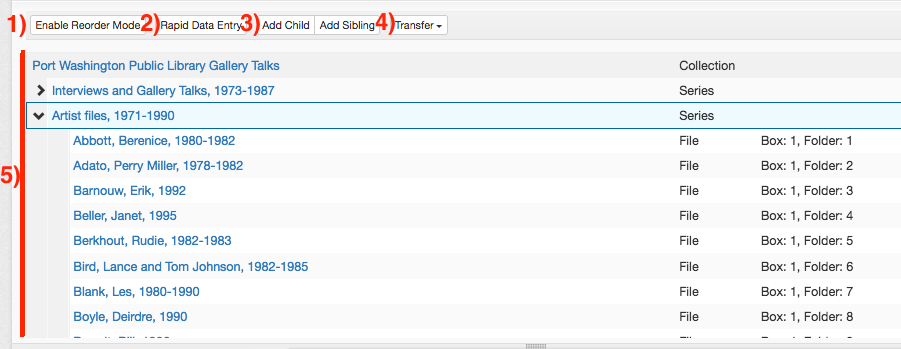
Archival Objects can only be created within the context of a Resource. To create an Archival Object, use the Add Sibling or Add Child buttons (buttons 3). Add Sibling will create a new object at the same hierarchical level as your current record. Add Child will create one directly below it.
The Transfer option (button 4) will move an archival object from one resource to another.
The Rapid Data Entry window can be opened by clicking on Rapid Data Entry (button 2).
Moving and Re-Ordering Archival Objects
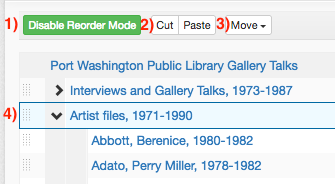
Archival objects can be moved within and between resources with the Enable Reorder Mode button (button 1). Use Cut and Paste (buttons 2) to cut and paste an archival object within a resource’s component hierarchy. Similarly, the Move option (button 3) can be used to more precisely move an archival object around a collection. Archival objects can also be dragged-and-dropped within the hierarchy window (field 4) by clicking-and-holding on the dotted area, which will reorder them within the collection.
Note that multiple components can be selected for dragging-and-dropping by shift-clicking (for a range), or control-clicking (for individual components). To select your components, double click inside the hierarchy window (field 4).
When dragging-and-dropping components, the selected components can be dragged onto another component. From the subsequent menu, choose whether the dragged components should be placed before or after the target component at its level, or as a child of the target component.
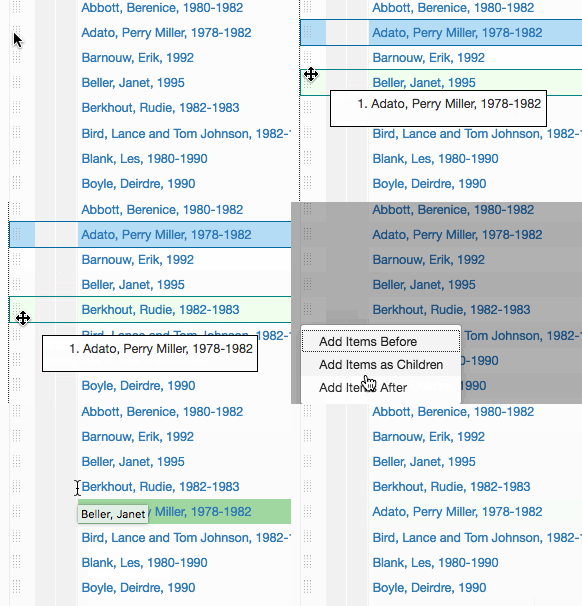
NOTE THAT THERE IS NO UNDO BUTTON FOR REORDERING. If you move a component to the wrong place in the hierarchy, you will need to manually move it to its correct location. Be extremely careful when moving archival objects around in a resource.
Archival Object Basic Information
This section explains how to fill out the fields of an archival object. See the DACS 2.3 for more information on component titles.
Title
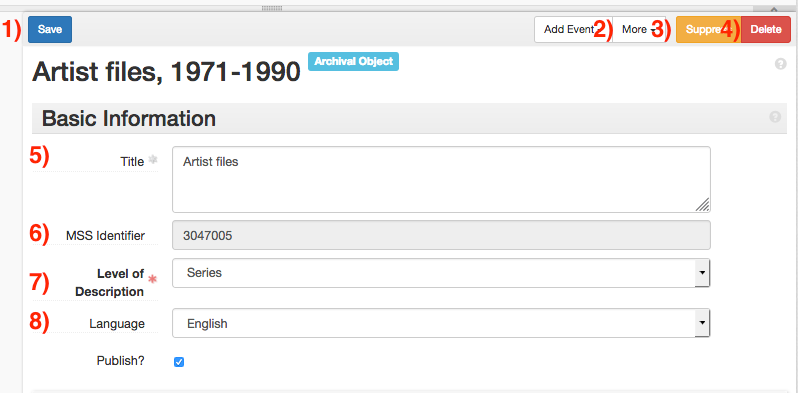
Provide the component’s title in Title (field 5). Refer to DACS 2.3 for more information on the formulation of titles. Do not provide the date in the title, instead provide it in the Date form.
Note that titles are not required for components. If a component has no title, but a date (e.g. “1900-1910” in the “Correspondence” series), provide the date, but do not provide a title.
MSS Identifier
The MSS Identifier (field 6) will be automatically generated. Do not provide a value for this field.
Level of Description
Provide the level of description of the component in the Level of Description menu (field 7). Select a value as follows:
-
For series-level components, select Series.
-
For subseries-level components, select Subseries. Choose this only for subseries directly under a Series component.
-
For all other components, select File.
Language
Provide the language of the materials being described in the Language menu (field 8). This value will default to English. If the finding describes materials in a language other than English, change this field to Multiple Languages and add a Language of Materials note.
Suppress
Archival objects can be suppressed by selecting the Suppress button (button 4). Suppressed records will export with an <audience=”internal”> attribute in EAD, will appear as gray in the PDF, and will be treated as nonexistent by systems outside of ArchivesSpace.
Save
Once an archival record is complete, press Save (button 1) to save the record.
Delete
If a record needs to be deleted, press Delete to delete the record. Note that this will also delete all of its child components in the hierarchy. Deleting a record cannot be undone.
More
The date calculator and extent calculator are available for components under the More menu (button 3). These function the same as the calculators for Resources. Refer to Using the Extent Calculator and Using the Date Calculator for more information.